Is Canva suitable for a KDP cover?
Key takeaway: Yes, if you set the exact size and check the licence terms. Canva does not know your page count, so you must supply the numbers.
A Canva book cover for KDP is a print cover you design in Canva at the exact size KDP gives you. You enter the width and height from the KDP cover calculator, mark the bleed and safe zones, place the spine, then export a print PDF.
Canva is a design tool with templates, fonts and images. It can export print-ready PDFs. It does not calculate your spine for you, and it does not check your file against KDP rules.
That means you do the maths first, then build the design to fit. The KDP cover calculator gives you the numbers. Canva gives you the canvas.
Step 1: get your numbers
Key takeaway: Write down the full width, the full height and the spine width before you open Canva.
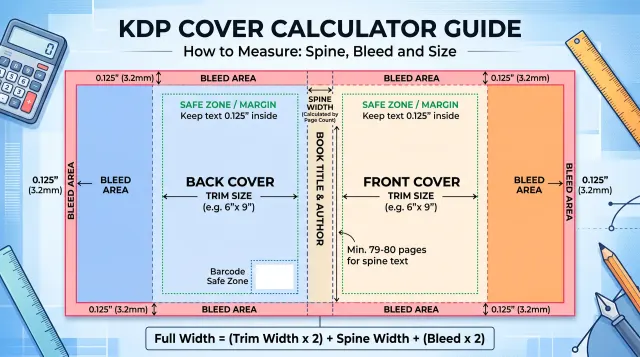
Use the KDP template generator or the formulas in the calculator guide. Here is an example for a 6 x 9 inch paperback with 300 pages on white paper.
- Spine width: 0.6756 inch.
- Full cover width: 12.9256 inches.
- Full cover height: 9.25 inches.
Your numbers will change with your page count and paper type. Do not copy these into your own project.
Step 2: set a custom size
Key takeaway: Use inches and enter the full width and height, including bleed.
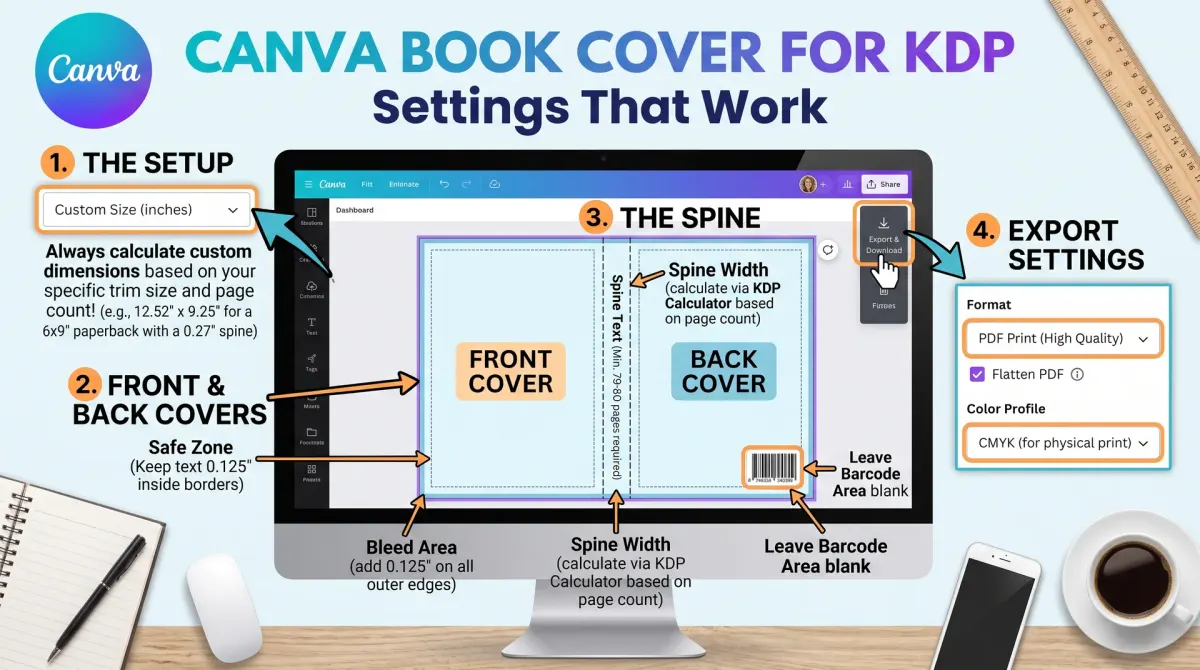
In Canva, create a design with custom dimensions. Choose inches as the unit. Enter the full cover width and height from your calculation. Canva may round values, so check that the size shows correctly after you create it.
Turn on rulers and guides. Add vertical guides at the points where the back cover ends, the spine begins, the spine ends and the front cover begins.
Step 3: mark the zones
Key takeaway: Draw simple boxes for each zone so you never put text in the wrong place.
Mark these zones with shapes on a separate layer, and delete them before export.
- The bleed area around the whole cover.
- The back cover panel.
- The spine panel.
- The front cover panel.
- The barcode area on the back cover.
- The safe zone inside each panel.
Keep all text inside the safe zone. Let backgrounds and images run into the bleed.
Step 4: build the design
Key takeaway: Start with a strong background, then add type and one focal image. Keep it simple.
Pick a background colour or image that fits your genre. Add the title, subtitle and author name to the front. Use big, clear type. Add the spine text if your book has enough pages. Add the back cover text and leave the barcode box clear.
Check licences. Canva has free and paid items, and each item has its own licence terms. Read Canva's own licence page to see what you may use on a book cover sold for profit. Avoid elements that many other authors use on covers, because your book will look like theirs.
Step 5: export
Key takeaway: Export a PDF made for print, at full size, and check it before you upload.
Use Canva's PDF print option. Make sure the page size matches your calculation. Open the exported file in a PDF viewer and check the page size. Place it over the KDP template if you can, and confirm that the spine and the safe zone line up.
Then upload it to KDP and use the previewer. Look at the spine and edges carefully. If anything looks off, adjust the design and export again.
Common problems
Key takeaway: Most Canva cover problems are about size and licence.
| Problem | Cause | Fix |
|---|---|---|
| Cover rejected for size | Wrong width or height | Recalculate with the KDP tool |
| Spine text off centre | Old page count | Update the spine width |
| Blurry front image | Low resolution source | Use a larger image |
| White edge after trim | No bleed in design | Extend the background into bleed |
| Licence concern | Image not cleared for covers | Replace the image or buy a licence |
When Canva is not enough
Key takeaway: Canva suits simple covers. Complex artwork or tight print control may need a dedicated design tool or a designer.
Canva works best for type-led covers, simple illustrations and photo backgrounds. It is less suited to covers that need precise colour control, layered artwork, custom lettering or exact print profiles. If your cover depends on these, consider a professional design tool or a freelance designer.
Another sign is time. If you have spent several evenings fighting the layout, a designer may cost less than your time is worth. Ask for the print-ready PDF and the source files, so you can make small changes later.
Keep your design files safe
Key takeaway: Save the working design and the exported files with clear names and dates.
Name each export with the title, the format and the page count, for example "my-book-6x9-300pp-cover.pdf". When you change the page count, save a new version and keep the old one. This stops you from uploading the wrong file.
Store a copy of the design outside Canva too. Download the PDF and any image files, and keep a note of the fonts and colours you used. If you later hire a designer, this makes the handover easy.
Why exact numbers matter on a print cover
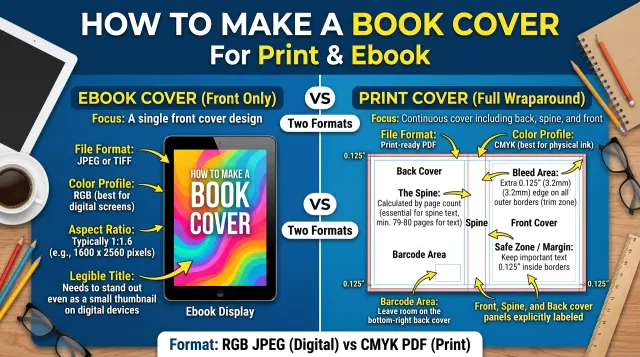
A print cover is one wide image that wraps around the book. It holds the back, the spine and the front, plus bleed on the outside edges. If the width is wrong by a small amount, the spine text may drift onto the wrong side.
The spine width depends on the page count and the paper type. A book with more pages has a wider spine. If you change the page count after you build the cover, you must rebuild it.
Use the KDP cover calculator after your interior file is final. Write down the width, height and spine width. Keep those numbers beside your Canva file.
Set up guides before you design
Guides keep text and images in the right place. In Canva, add rulers and drag guides from the edges.
Mark the bleed on every outer side. Mark the safe zone inside the trim line, where important text should stay. Mark the fold lines for the spine on both sides. Mark the barcode area on the back cover, where KDP may place a barcode.
Then build the design inside those lines. Extend background colours and images into the bleed. Keep titles and names well inside the safe zone.
Design for a thumbnail first
Most readers see your cover as a small image. Design the front for that view. Use a clear title, a short subtitle and one strong image or shape. Choose fonts that are easy to read.
Limit yourself to two fonts and a few colours. Make sure there is strong contrast between the text and the background. Check the cover in greyscale. If the title disappears, change the contrast.
Look at covers in your genre. Match the style readers expect, and add a detail that makes yours easy to remember.
Check image and font licences
Canva offers free and paid images, elements and fonts, each with its own terms. Read the licence for the plan you use. Some elements are not allowed as the main part of a product you sell, and some are restricted for use on covers.
Keep a list of every asset you use. Note the source, the plan and the date. If a term changes, you can check your list.
If you are unsure, use your own photos or illustrations, or pick assets from a source with a clear commercial licence.
Export and test the PDF
Export the cover as a PDF for print. Do not add crop marks, since KDP does not want them. Keep the page size exactly as set.
Upload the PDF to the KDP previewer. Check that the spine text sits in the centre. Check that nothing important is near the edge. Check the barcode area.
Order a printed proof. Colours often look different on paper. If the cover looks dark, lighten the image and try again.
When to ask for help
If you struggle with the spine, the bleed or the export, ask a designer for a short review. A quick check can save a failed upload.
Also consider help if your cover needs custom art, or if you plan a series that must match.
Common Canva cover problems and fixes
If text is cut off in the previewer, move it inside the safe zone. If the spine text is off centre, check the fold guides and the spine width. If colours look dull in print, brighten the image a little. If the file is too large, reduce image size without losing detail.
If the previewer says the size is wrong, recheck the calculator numbers and the page count. Change only one thing at a time.
Keep a note of each fix.
Design tips for a better look
Use one strong image or shape. Keep the layout simple. Use space around the title. Align text to a clear grid. Match the colours to your genre.
Check contrast. Avoid text over busy areas.
People also ask about Canva and KDP covers
Can I use Canva for a KDP book cover?
Yes, many authors do. Set a custom size from the KDP cover calculator, add the guides and export a PDF. Check Canva's licence terms for the images and elements you use, and test the file in the KDP previewer before you publish.
What size should a Canva cover be for KDP?
The size depends on your trim size, page count and paper type. Use the KDP cover calculator to get the full width and height with bleed. Enter those numbers as a custom size in Canva. Do not guess, because a small error can cause a rejection.
Does KDP accept covers made in Canva?
KDP accepts print covers as a PDF that meets its size and bleed rules, whatever tool made them. Check that your file has the right dimensions, that the barcode area is clear and that text stays inside the safe zone. Use the previewer to confirm.
Save your files
Keep your Canva project, a PDF export and a note of your numbers. Name versions by date. You will need them for the next edition or the next book in a series.