What the calculator does
Key takeaway: The calculator turns three inputs into the exact size of your print cover file.
The KDP cover calculator is a tool that works out the exact size of a print cover from your trim size, page count and paper type. It gives the full width and height, the spine width and the bleed, so your cover file fits the printed book.
Three inputs matter: the trim size, the number of pages and the paper type. From these, the tool works out the spine width and the total width and height of the cover.
KDP provides its own cover template generator and calculator, which give you a template file with guides. Using the official numbers avoids rejected covers.
The formula
Key takeaway: Three short formulas give you everything. Learn them once and you can check any tool.
- Spine width = page count x paper thickness.
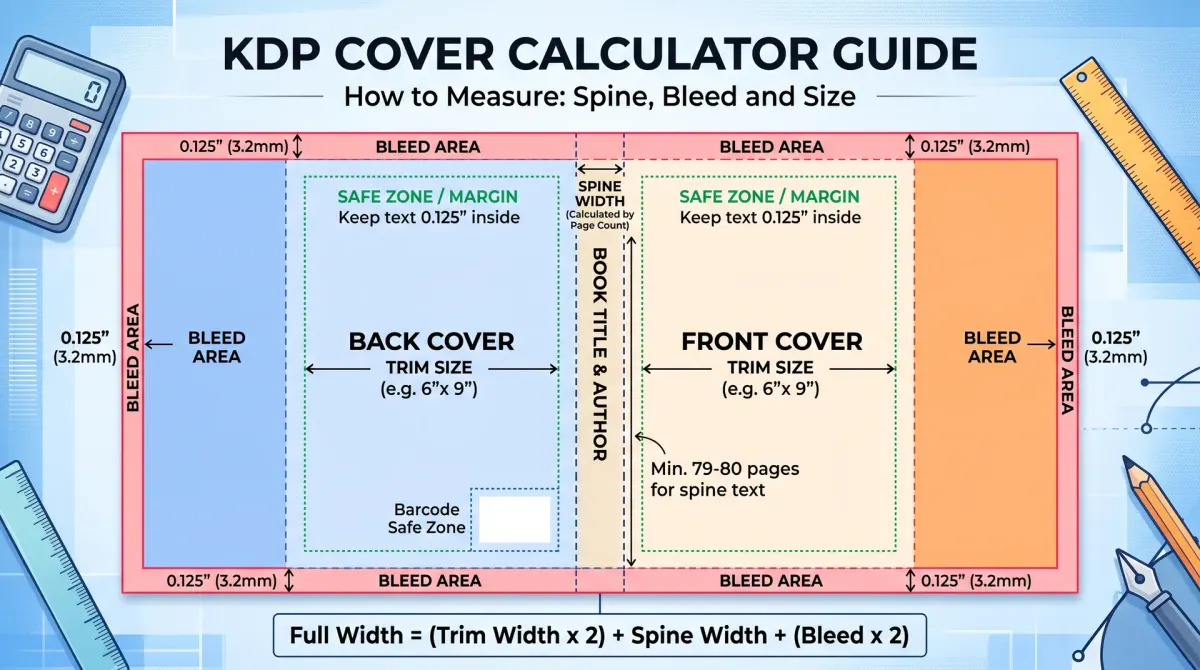
- Full cover width = (2 x trim width) + spine width + (2 x bleed).
- Full cover height = trim height + (2 x bleed).
KDP lists a thickness per page for each paper type. For black-and-white interiors, the values are 0.002252 inch per page for white paper and 0.0025 inch per page for cream paper. Check the current figures on KDP before you design, because they can change.
Worked example: 6 x 9, 300 pages
Key takeaway: Follow the numbers once on paper. You will spot errors in other tools quickly.
Take a 6 x 9 inch paperback with 300 pages on white paper. Bleed is 0.125 inch.
- Spine width: 300 x 0.002252 = 0.6756 inch.
- Cover width: (2 x 6) + 0.6756 + (2 x 0.125) = 12.9256 inches.
- Cover height: 9 + (2 x 0.125) = 9.25 inches.
On cream paper, the spine is 300 x 0.0025 = 0.75 inch. The cover width becomes 12 + 0.75 + 0.25 = 13 inches.
Notice that the paper choice changes the cover width by about 0.07 inch. That is enough to push text out of place on the spine.
What happens when pages change
Key takeaway: Every change in page count means a new spine width. Finish the interior first.
Suppose you add a new chapter and the book grows from 300 to 320 pages on white paper. The spine becomes 320 x 0.002252 = 0.7206 inch. The full width becomes 12 + 0.7206 + 0.25 = 12.9706 inches.
The change is small but real. If you upload the old cover, the spine text can sit too far to one side. Recalculate every time the page count changes, even by a few pages.
Spine text and small books
Key takeaway: A thin book may not have room for spine text. Check the minimum in the KDP template notes.
KDP allows spine text only when the book has enough pages. Below the minimum, leave the spine blank or use a plain colour. For books that qualify, keep the text away from the spine edges, because printing shifts the artwork by a small amount.
Barcode and safe zone
Key takeaway: Leave the barcode area clear and keep text inside the safe zone.
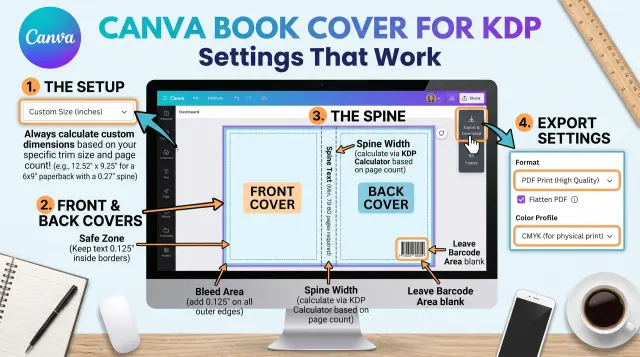
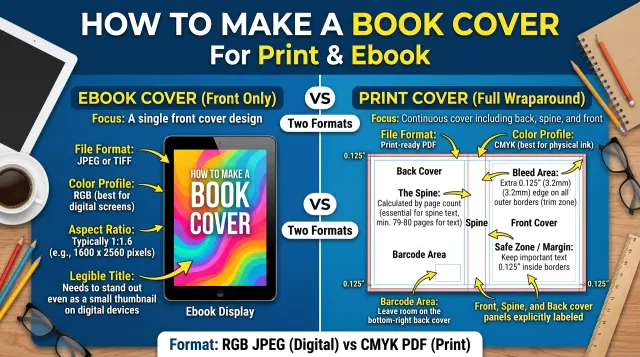
The template marks where the barcode goes on the back cover. Do not put text or important art there. KDP adds the barcode for you when you use its free ISBN. If you use your own ISBN, you can supply your own barcode or let KDP place one.
Keep all text inside the safe zone shown on the template. A small shift during trimming can cut anything too close to the edge.
Ebook covers are simpler
Key takeaway: An ebook cover needs no spine or bleed, just a front image of the right shape.
Ebook covers are a single image. KDP's help pages list the recommended dimensions and file types. A tall shape, with a height-to-width ratio of 1.6 to 1, works well. Check the current requirements before you export.
Common cover calculator mistakes
Key takeaway: Most rejected covers have one of five simple errors.
- Using an old page count.
- Choosing the wrong paper type in the calculator.
- Forgetting the bleed.
- Using the wrong trim size.
- Putting the barcode area under text.
Open your final cover next to the KDP template and compare. The edges and guides should line up.
Why the cover size matters so much
Key takeaway: A cover that is a fraction of an inch off can fail review or print badly. The numbers decide the result.
Print covers are not scaled to fit. KDP prints your cover file at its stated size and wraps it around the book. If the file is too narrow, the front or back may shift into the spine. If it is too wide, part of the design may be cut off.
A small mismatch shows up as a thin white strip, a title that touches the edge, or a spine that sits off centre. These problems are easy to avoid if you calculate the size from the final page count. They are costly to fix after a book has gone live, because you must upload a new file and wait for review again.
A calculation checklist
Key takeaway: Run this list before you start designing and again before you upload.
- Is the trim size final?
- Is the page count final after formatting?
- Did I choose the right paper type in the calculator?
- Did I add bleed on all outer edges?
- Did I leave the barcode area clear?
- Does my exported file match the template size to the hundredth of an inch?
- Did I check the KDP previewer for the spine and edges?
Keep these values in a note beside your project files. When you make a new edition, you can update the numbers in minutes.
Why the interior comes first
The cover depends on the page count. The page count depends on the final interior. If you change the interior after you build the cover, the spine may be wrong.
Finish editing and formatting. Export the final PDF and note the page count. Then use the calculator.
Keep the numbers in a notes file with the date.
Enter the right inputs
Choose the trim size you used in the interior. Enter the exact number of pages in the file. Choose the paper type, such as white or cream, and the cover finish if asked.
The choices affect the spine. A thicker paper adds width. A different finish may change the cover rules.
Double-check each input. A wrong number leads to a wrong cover.
Read the results
The calculator shows the total width and height with bleed, plus the spine width. It may show the size of each panel.
Copy these into your design tool as a custom size. Add guides for the spine fold lines and the safe zone.
Save a screenshot of the result.
Keep text and art safe
Place important text well inside the trim line. Keep a safe margin from the spine fold. Do not place faces or key details across the fold.
Leave the barcode area free on the back cover. KDP places the barcode there.
Check your cover in the previewer.
When the page count changes
If you add or remove pages, recalculate. The spine will change. Move the front and back panels to match and adjust the spine text.
If you move between paper types, recalculate too.
Budget time for this, since late changes happen.
Common mistakes
Typical errors include using the wrong trim size, forgetting bleed, guessing the spine, covering the barcode area and placing text too close to the edge.
Another is changing the interior without updating the cover. A short checklist prevents these.
Worked example for a 6 x 9 book
Take a book with a 6 x 9 inch trim size, 300 pages and white paper. Enter these in the calculator. The calculator returns a spine width and a total width that combines the back, the spine, the front and the bleed.
The height is the trim height plus the bleed at top and bottom. The width is two trim widths, plus the spine and the bleed at the outer edges. The calculator does this sum for you.
Write the results in your notes. If your page count changes to 320, run the calculator again. The spine and the total width will change, even if the difference looks small.
Checklist before you upload
Before you upload the cover, check these points. The trim size matches the interior. The page count matches the final interior. The paper type matches. The full size matches the calculator, with bleed. The spine fold lines are marked. Text is inside the safe zone. The barcode area is clear. The file is a PDF at the right size.
Then upload to the previewer and look at each edge. Fix any warning and upload again.
Keep the final file and your notes together for the next edition.
Keep a cover file system
A tidy file system saves hours. Create a cover folder with subfolders for the working file, the print PDF, the ebook image and the notes. Name each file with the title, the format and the date.
In the notes, record the trim size, the page count, the paper type, the spine width and the total size from the calculator. Add the date you ran it.
When you plan a new edition, open the notes first. You will see at once what to recalculate, and your cover will not drift from the interior.
People also ask about the KDP cover calculator
How do I find my spine width on KDP?
Spine width depends on your page count and paper type. Use the KDP cover calculator, enter the trim size, page count and paper, and it gives the width. Do this after the interior is final, because any change in pages changes the spine.
What is bleed on a book cover?
Bleed is extra image area outside the trim line. Printing and cutting are not exact, so the bleed makes sure there are no white edges. KDP states the bleed amount for covers. Extend your background into the bleed and keep text inside the safe zone.
Do I need the cover calculator for an ebook?
No. An ebook cover is a single front image, and the store sets recommended sizes. The calculator is for print covers that wrap around the book. Check the current ebook cover guidelines on the KDP help pages.
Use the calculator every time
Treat the calculator as a routine step for each print book and edition. It takes a minute and saves a rejected upload.