What the author page does
Key takeaway: The page is your public profile on Amazon. It turns a one-time buyer into a reader who can find your other books.
An Amazon author page is a public profile on Amazon where readers see your photo, bio, books and updates in one place. You create and manage it through Author Central, and it helps readers find all your titles and learn who you are.
When a reader sees a book they like, many click the author's name to see what else the author has written. That click lands on your author page. If the page is empty or out of date, the reader leaves. If it shows a clear photo, a short bio and all your books, the reader has a reason to stay and look around.
The page also gives your books a home on Amazon that you control. You decide how you describe yourself, and you can link your books together even when they are in different formats or series.
Before you start
Key takeaway: Have your book published and your details ready. The setup takes less than an hour.
Make sure your book is live on Amazon. Use an Amazon account you are happy to link to your author name. Prepare a short bio, a clear photo and the links you want to share, such as your website. Decide the exact form of your author name, and use it on every book.
Author Central works with books published through KDP and also with books from other publishers. Your name must match the name on the book.
Set up your page step by step
Key takeaway: Claim your name, add your books, then complete the profile. Do it in this order.
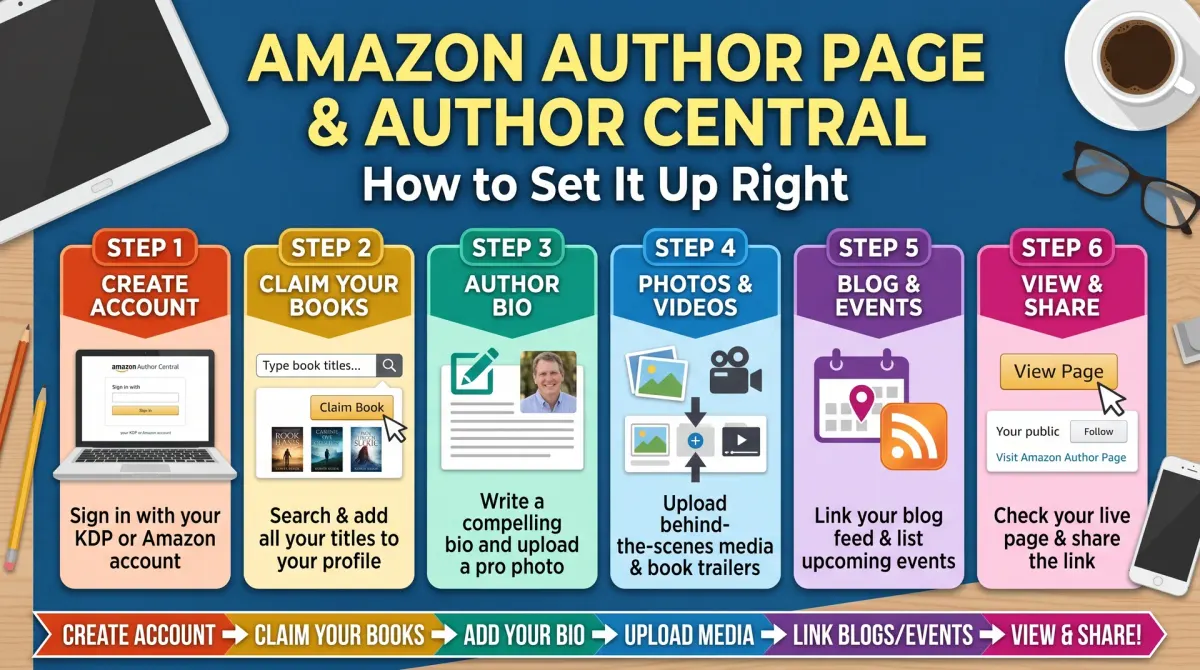
Go to the Author Central site and sign in with your Amazon account. Follow the prompts to create your author profile. Then search for your book by title or ISBN and claim it. Amazon may ask you to confirm that you are the author.
After you claim your books, complete the profile. Add your bio, photo and any links. Choose the marketplaces you want to manage if Author Central offers several. Check how the page looks as a reader would see it, on a phone and on a computer.
Come back after a few days to confirm that all your books appear.
Write a short, useful bio
Key takeaway: A good bio is short, specific and written for readers, not for yourself.
Open with who you write for and what you write about. Add one or two facts that build trust, such as your training, your work or the experience behind the book. End with a line that points readers somewhere, for example your website or newsletter.
Here is a simple pattern. "[Name] writes [type of books] for [reader]. [One line on background]. [One line on where to find more]."
Keep it to a few sentences. Write in the third person for most genres, and in the first person if your brand is personal and warm. Do not claim awards or sales you cannot prove.
Choose a clear photo
Key takeaway: A clear, friendly photo makes the profile feel real. Avoid logos and blurry shots.
Use a recent photo of your face, in good light, with a plain background. Crop it so your face is easy to see at small size. If you prefer privacy, use an illustration that you have the rights to, and be consistent across platforms.
Keep your page current
Key takeaway: Update the page after each launch. A stale page tells readers you are not active.
After each new book, check that it appears on your page and that the series, formats and editions are grouped. Update your bio if your work changes. Review the page twice a year, and remove broken links.
If something looks wrong, such as a book from another author with your name, use the Author Central help to report it.
Common mistakes
Key takeaway: Most issues come from name mismatches and missing books.
- Using a different author name on each book.
- Leaving the bio empty or copying the book description.
- Forgetting to claim new books.
- Using a low-resolution or cropped photo.
- Linking to sites that no longer exist.
Fix these once, and the page works for you with little upkeep.
Use the page to help readers find your books
Key takeaway: The author page is a shop window. Make it easy to see what to read first.
If you have several books, readers need a clear starting point. Make sure titles in a series are grouped, and that each book has the series name in its details. Write a bio line that points to your best-known book.
Link your website or newsletter in your bio if the platform allows it, so interested readers can follow you off Amazon. Check the page on a phone, because most readers will see it there.
Connect the page to the rest of your marketing
Key takeaway: Send readers to the page from places you already use.
Add the link to your email signature, your website, your social profiles and the back of your books. When you talk about your book in a podcast or at an event, give the author page address as well as the book link. Readers who like one book can then find the others.
Check the page after each new release and after each price or cover change. A small routine keeps the page accurate and your readers informed.
What readers look for on your page
Readers visit an author page to decide whether to trust you and to find more books. They look at the photo, the first lines of the bio and the list of titles. They scan quickly.
Put the most useful facts first. Say what you write and who it helps. Show the books in a logical order, with series books together. If you write more than one kind of book, use a clear line to separate them.
Avoid long life stories. Readers want enough to feel they know you, then they want your books.
Matching names across your books
Author Central works best when your name is the same everywhere. If one book uses "J. A. Smith" and another uses "Jane Smith", Amazon may treat them as different authors. Choose one form of your name and use it on every cover and in every KDP entry.
If you use a pen name, set up a separate page for it. Keep each name's books together and write each bio for that audience.
When you add a new book, check that the name matches before you publish. It is easier to fix at the start than to change later.
Linking your page to everything else
Your author page should connect to your other channels. Add your website to your bio where the tool allows it. Use the same photo and bio style on your site and your social profiles. A consistent look makes you easier to recognise.
Put the author page link in the back of your books. Add it to your email signature and your launch emails. When readers finish a book, a link to your page makes the next step easy.
A short routine to keep it current
Set a reminder every three months. Check that all your books are listed. Update the bio if something has changed. Replace the photo if it is old. Review any updates or events you posted.
After a new release, add the book the same day. Write a short update that tells readers what is new. Keep the tone simple and warm.
Small, regular care keeps the page accurate, and accuracy builds trust.
Photo, bio and links: small choices that matter
A clear photo is friendly and professional. Use good light, a plain background and a recent image where you are easy to recognise. Avoid group photos and heavy filters. Use the same photo across your channels.
Your bio should answer one question: why should a reader trust you with this topic? For non-fiction, name your field and your experience. For fiction, say what you write and what readers can expect. Add a touch of personality in one short line.
Check every link before you save. A broken link looks careless. After you save, view the page as a reader would, on a phone and on a computer.
Using updates and events
Author Central lets you share news. Use it for new releases, sales on your own site, public talks and signings. Keep each update short and clear, with a date.
Do not post every day. A few well-timed updates look better than a crowd of small ones. Remove events that are over, so the page stays tidy.
Tie your updates to your launch plan. When a book comes out, post on the same day, send your email and update your site. Readers who see the same message in several places are more likely to act.
People also ask about Amazon author pages
Is an Amazon author page free?
Yes. Author Central and the author page are free to use. You sign in, claim your books and fill in your profile. There is no fee to be listed. You may choose to pay for other marketing, but the page itself does not cost anything.
How do I add my books to my author page?
Sign in to Author Central, open your books list and search for your titles by name or ISBN. Select each book that is yours and claim it. Amazon may take a short time to update. If a book does not appear, check the author name matches the one on the book.
What should I write in my Amazon author bio?
Write a short bio in the third person. Start with who you write for or what you write about. Add one or two facts that give you credibility, such as your field or your background. End with a link or a line that invites readers to follow you. Keep it clear and honest.
Make the page work for you
An author page is a small but steady tool. It does not bring readers by itself, but it helps those who arrive. Fill in every part, keep it current and point readers to it from your books and messages.