Before you start
Key takeaway: Have your files and details ready first. The KDP setup is quick when nothing is missing.
To publish a book on Amazon, you create a free Kindle Direct Publishing account, enter your book details, upload the manuscript and cover, set the price and submit. Amazon reviews the files and then lists the book for sale as an ebook, paperback or hardcover.
Publishing is faster when you prepare these items:
- A finished, edited manuscript.
- A cover file that matches your trim size and page count (print) or a front cover image (ebook).
- A title, subtitle, author name and book description.
- Seven keyword phrases and two or three category ideas.
- Your tax details and a bank account for payment.
- A price in mind, checked against the printing cost.
If the cover or manuscript is not ready, finish those first. KDP lets you save a draft and return, but rushing the upload usually leads to rejected files.
Step by step: publish on Amazon KDP
Key takeaway: There are eight steps. The proof copy and the price check are the two steps most people skip.
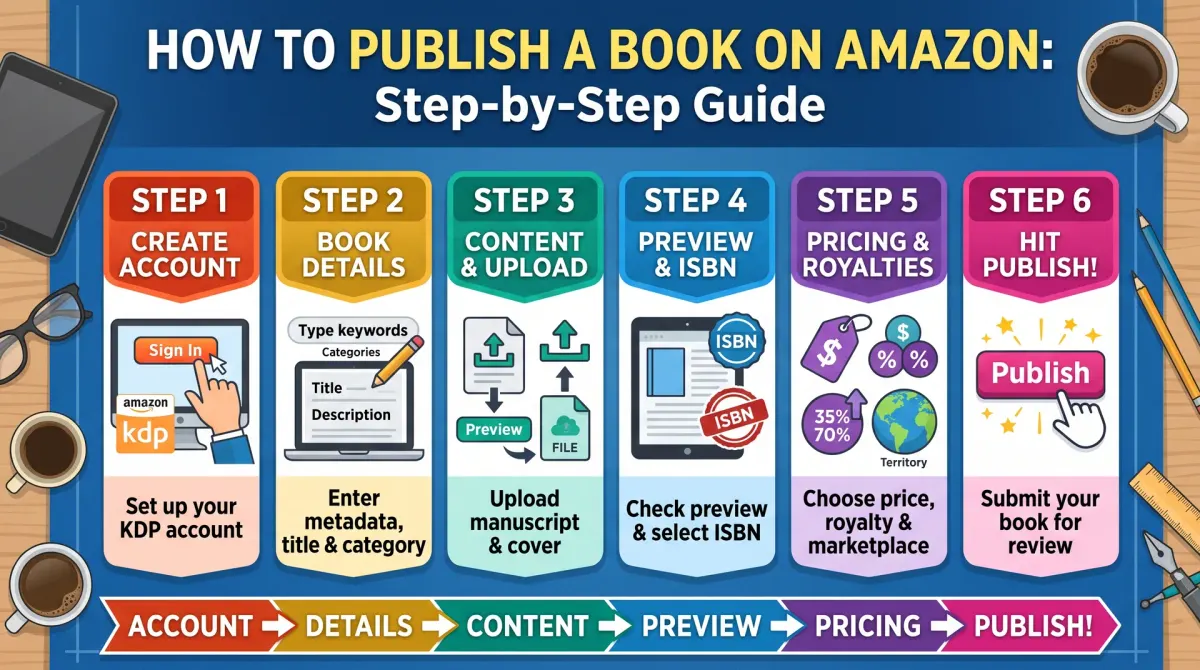
- Create your KDP account. Go to kdp.amazon.com and sign in with your Amazon login or create one. Accept the terms.
- Add tax and payment details. Complete the tax interview and enter your bank details. KDP cannot pay you until this is done.
- Create a new title. On the Bookshelf page, choose Create, then pick Kindle ebook, paperback or hardcover.
- Enter the book details. Add the language, title, subtitle, author name, description, keywords and categories. Say whether you used AI-generated content, as KDP asks.
- Choose an ISBN for print. Use the free KDP ISBN or enter your own. Ebooks do not need one.
- Upload your manuscript and cover. Use the online previewer to check every page, and fix any errors it flags.
- Set territories and price. Choose where you hold rights and set the list price. Check the royalty shown.
- Order a proof copy, then publish. Approve the proof, then select Publish. KDP reviews the book before it goes live.
How to choose your price
Key takeaway: Price after you know the printing cost. A low price can leave almost nothing for you.
For print books, KDP shows the printing cost and the royalty as you change the price. Use that screen, or a calculator, before you commit.
Here is a worked example. Take a 6 x 9 black-and-white paperback with 300 pages.
- Printing cost: $1.00 + 300 x $0.012 = $4.60.
- At $9.99, the royalty is 0.60 x $9.99 - $4.60 = $1.39.
- At $14.99, the royalty is 0.60 x $14.99 - $4.60 = $4.39.
The higher price earns over three times as much per copy. Readers may buy fewer copies at the higher price, so look at similar books in your category too.
For ebooks, the 70% royalty option applies only within a price band, which on Amazon.com is $2.99 to $12.99. Outside it, the 35% rate applies.
Choose your ISBN
Key takeaway: The free KDP ISBN is easy but limits where the edition can be sold. Your own ISBN gives you control.
With a free KDP ISBN, the imprint shows as "Independently published" and the book can be sold only through KDP. With your own ISBN, you pick the imprint name and can use the same ISBN across platforms.
Order a proof copy
Key takeaway: A printed proof catches problems that the screen preview cannot show.
A proof copy is a real printed copy. KDP prints proofs at the printing cost, with a "not for resale" mark. Check the margins, the spine text, the cover colours and the text near the page edges. If you find an issue, fix the file and upload it again.
What happens after you submit
Key takeaway: Expect a review. New books and updates usually go live within three business days.
KDP reviews every book for content, quality and rights issues. Print books from first-time publishers can take a little longer. When approved, your book appears on Amazon and you get an email.
After launch, you can update the description, price and files at any time. A new version of the files goes through review again.
Common problems and fixes
Key takeaway: Most rejections come from cover size, margins or rights questions. Each has a clear fix.
| Problem | Likely cause | Fix |
|---|---|---|
| Cover rejected | Wrong size for the page count | Recalculate the cover size |
| Text near the edge cut off | Margins too small | Increase the inside margin |
| Book blocked in review | Content or rights concern | Read the message and reply with proof |
| Royalty looks too low | High printing cost or low price | Raise the price or reduce page count |
| Wrong ISBN shown | ISBN chosen too early | Check the details tab before publishing |
Why KDP sometimes rejects a book
A rejection is rarely a surprise if you know the usual causes. Most are about files, not about you.
Print files fail when text sits too close to the edge, when pages have the wrong size or when fonts are not embedded. Covers fail when the size does not match the page count, when the barcode area is covered or when the image is too small. Details fail when the title on the cover differs from the title entered, or when the author name does not match.
Content can also be refused. KDP has rules on copied text, low-quality books and misleading titles. Read the content guidelines before you upload.
After your book goes live
Going live is the start of the work. Check your product page on a phone and on a computer. Read the description, look at the cover thumbnail and click every link. Search for your title to see how it appears.
Order a copy of the live paperback and compare it with your proof. Add your book to your Author Central page so readers can find your other titles. Save a copy of every final file.
Then plan a simple launch. Tell your email list, ask honest readers for reviews and track your reports every week for the first month.
Your account and tax setup
Create your KDP account with your own details and keep the login safe. Fill in your author name exactly as you want it on the cover. Add your tax information and your bank details. KDP will not pay royalties until the tax section is complete.
Use a real email address you check often. KDP sends review notices and problem reports there. A missed email can delay a launch by days.
If you live outside the US, read the tax interview with care and keep your records. When in doubt, ask a tax adviser. This is not something to guess.
Book details that help readers find you
The details you enter decide how the book appears in the store. Write the title and subtitle in plain words that match the cover. Write a description that opens with the reader's problem and ends with a clear reason to buy.
Choose seven keywords that readers would really type. Use phrases, not single words. Pick two categories that fit the book, not the biggest ones. A smaller category with fit beats a crowded one with no fit.
Check spelling in every field. Typos in the title or description cost trust.
Pricing and the proof stage
Set a price after you know your printing cost. Use a calculator to see your royalty at several prices. A price that leaves a very thin royalty is risky if costs change.
Order a printed proof before you publish. Check margins, page numbers, chapter starts, images and the cover colour. Read it aloud once. Fix every problem in the source file, upload again and check the previewer.
The proof is the cheapest insurance in publishing. A small cost now avoids a bad review later.
Fixing common upload errors
Most upload errors have a short list of causes. If the previewer shows text cut off, move your content inside the margins. If a font warning appears, embed the fonts when you export the PDF. If the cover is rejected, rebuild it from the calculator numbers and check that the barcode area is clear.
Change one thing at a time and upload again. If you change five things together, you will not know which one fixed the problem. Keep a note of each fix.
When a message is unclear, search the KDP help pages for the exact wording. If that fails, contact KDP support with your book ID and a short description. Be polite and specific.
Plan your launch week before you submit
Do not wait until the book is live to plan the launch. Decide which day you want readers to see it. Tell your email list, your friends and any early readers. Prepare two or three short posts with the cover and the link.
If you want reviews, ask early readers to read an advance copy and leave an honest review once the book is live. Do not offer payment for reviews, and follow the review rules of the store. Write a short, polite message that explains how to leave a review and thank them whatever they say.
Keep your first week simple and steady. Check your product page, answer messages and note which messages bring clicks.
People also ask about publishing on Amazon
How much does it cost to publish a book on Amazon?
Publishing on KDP has no setup fee. Amazon keeps a share of each sale, and for print books the printing cost is taken from the price. You may choose to pay for editing, cover design or your own ISBN. Proof copies cost printing, shipping and tax.
Can I publish a book on Amazon without an ISBN?
Yes. Ebooks on KDP do not need an ISBN. For print books, KDP can assign a free ISBN. That free ISBN works only on KDP. If you want to sell the same print edition elsewhere or use your own imprint, you need to buy your own.
How long does Amazon take to approve a book?
KDP states that review can take up to a few days. Some books are live sooner. Delays happen when files need fixes. Watch your email and the Bookshelf status. If KDP finds a problem, it tells you what to change before it will list the book.
A calm way to finish
Publishing on Amazon feels big the first time. It is a set of small tasks done in order. Prepare the files, enter the details, check the previewer, order a proof and submit.
If something fails, read the message, fix the file and upload it again. Almost every problem has a clear fix on the KDP help pages.