What is a KDP cover template?
Key takeaway: A template is a guide layout. It must match your trim size, page count and paper type.
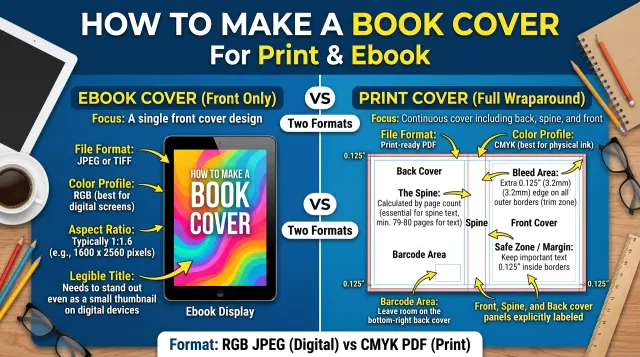
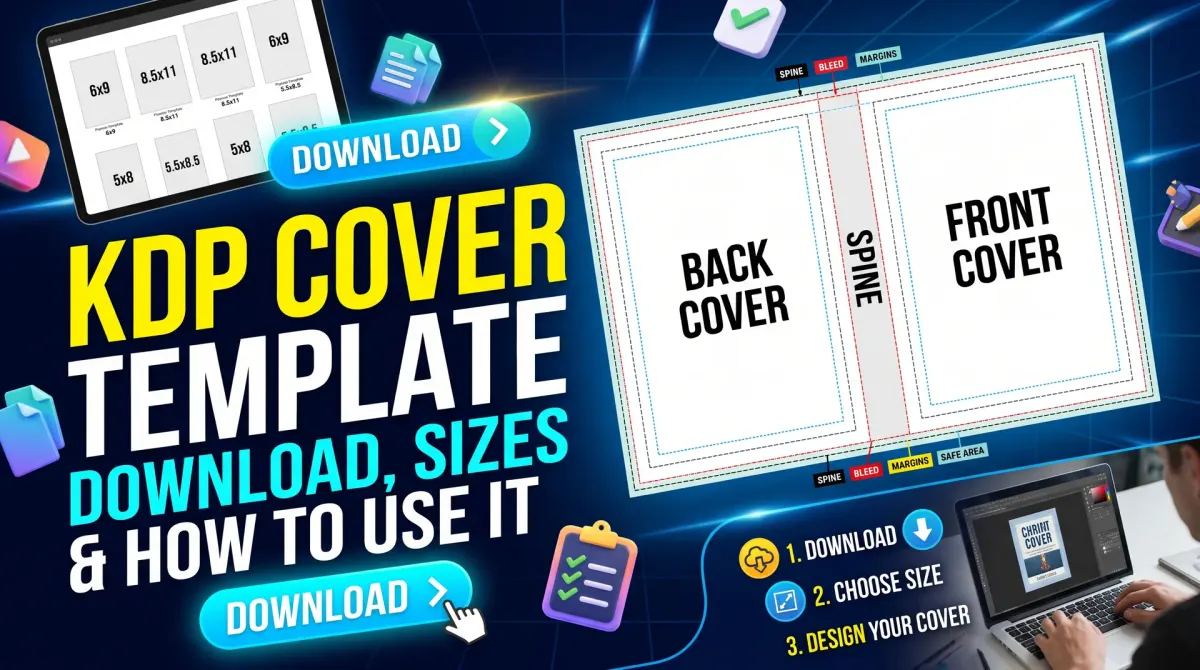
A KDP cover template is a layout file that marks the back cover, spine, front cover, bleed and safe zones. It is built from your trim size, page count and paper type. You design on top of it. Then you remove the guides and export one PDF.
Amazon KDP is Amazon's self-publishing service for ebooks and paperbacks. For a paperback, it asks for a single PDF with the back cover, spine and front cover side by side.
A template helps you place each element in the right zone. It usually shows four areas.
- Bleed. Extra image beyond the trim so no white edge shows after cutting.
- Trim. The final cut edge of the book.
- Spine. The strip that joins the front and back covers.
- Safe zone. The area where text and key art stay clear of the edges.
Many book cover template files you find online are generic. Do not trust a template unless the numbers match your book. Always check the size against the KDP calculator.
A good KDP book cover template is built from your own numbers. A generic one is only a rough guide. Before you design, compare any downloaded KDP book cover template to your calculator result. Check the width and the spine.
Cover calculator KDP: how to find your size
Key takeaway: The KDP cover calculator gives the exact cover width and height for your book.
The KDP cover calculator takes your trim size, page count and paper type. It returns the full cover dimensions. You can then build the template in a design tool.
You can also work out the numbers yourself. KDP gives the formula.
- Cover width = bleed + back cover width + spine width + front cover width + bleed.
- Cover height = bleed + trim height + bleed.
- Bleed = 0.125 inches on each outer edge.
The spine width depends on paper type. KDP lists these multipliers.
| Paper type | Spine formula | Per page |
|---|---|---|
| White paper | pages × 0.002252 in | 0.002252 in |
| Cream paper | pages × 0.0025 in | 0.0025 in |
| Premium color | pages × 0.002347 in | 0.002347 in |
Standard color uses the same multiplier as white paper, 0.002252 inches per page.
Use the calculator to confirm your math. A small error in the spine can push text onto the wrong side.
Worked example: a 6×9 paperback with 300 pages
Key takeaway: Three paper types give three different cover widths for the same book.
Here is the math for a 6×9 inch book with 300 pages.
Cover height: 0.125 + 9 + 0.125 = 9.25 inches. This is the same for every paper type.
White paper:
- Spine: 300 × 0.002252 = 0.6756 inches.
- Width: 0.125 + 6 + 0.6756 + 6 + 0.125 = 12.9256 inches.
Cream paper:
- Spine: 300 × 0.0025 = 0.75 inches.
- Width: 0.125 + 6 + 0.75 + 6 + 0.125 = 13.0 inches.
Premium color:
- Spine: 300 × 0.002347 = 0.7041 inches.
- Width: 0.125 + 6 + 0.7041 + 6 + 0.125 = 12.9541 inches.
The difference is small but real. A cream-paper cover is about 0.07 inches wider than a white-paper cover. If you build a cream template and print on white, your spine will sit off center.
Always set the page count and paper type before you build the template. If your page count changes, recalculate.
For a closer look at trim size and its effect on the cover, see the trim guide.
Safe zones, margins and fonts
Key takeaway: Keep text 0.125 inches inside the trim. Use the spine only with 79 or more pages.
KDP's help page lists clear limits.
| Item | Rule |
|---|---|
| Text from trim edge | At least 0.125 in inside |
| Spine text | Needs at least 79 pages |
| Spine margin | At least 0.0625 in each side |
| Minimum font | 7 pt |
| Image resolution | 300 DPI, CMYK |
Spine text is the one that catches authors. A book under 79 pages has too thin a spine for text. Leave the spine blank or use a color only.
Spine placement can shift slightly during printing. KDP notes a variance of 0.0625 inches. That is why a spine margin matters. Center the text and leave space on both sides.
Do not run text into the spine from the front or back cover. Keep each area separate.
Set your document to CMYK if your tool allows it. Images at 300 DPI keep the print sharp. Low-resolution art looks soft in print.
The barcode area
Key takeaway: Leave the barcode zone empty. KDP adds a barcode if you do not supply one.
KDP's barcode help page says it adds a barcode if you do not provide one. Any text or image in the barcode area will be rejected. So keep that corner clear on the back cover.
If you supply your own barcode, KDP suggests a size of 2 inches by 1.2 inches. The minimum is 1.4 inches by 0.8 inches. Keep it at least 0.25 inches from the spine and the trim edge. Print it in 100 percent black on a white background.
What changed recently
Key takeaway: Transparency codes were retired for books created after November 2025.
KDP's barcode page says Transparency codes have been retired for books created after November 2025. If an older guide tells you to leave room for one, ignore that advice for new books.
Always read the current barcode page before you finalize a cover. Rules can change again.
Building the template in a design tool
Key takeaway: Use guides for bleed, spine and safe zone. Delete them before you export.
Most design tools let you set a custom page size. Enter the full cover width and height from your math. Then add guides.
Place these guides in order from the left edge.
- 0.125 inches for the bleed.
- Back cover width (your trim width).
- Spine width.
- Front cover width (your trim width).
- 0.125 inches for the right bleed.
Add safe-zone guides 0.125 inches inside the trim edge on the back and front covers. Add spine guides 0.0625 inches inside each spine fold.
For the 6×9 white-paper example, the guides sit here.
- Back cover starts at 0.125 inches and ends at 6.125 inches.
- Spine runs from 6.125 inches to 6.8006 inches (6.125 + 0.6756).
- Front cover runs from 6.8006 inches to 12.8006 inches.
- Right bleed ends at 12.9256 inches.
That math adds up. The last number matches the total width from the worked example.
Save this file as your master. Duplicate it for each new design. Keep the guides on a separate layer, so you can hide them before export.
Test the final PDF by opening it at 100 percent. Look at the edges. Confirm that no guides, labels or crop marks remain.
How to use a KDP cover template: steps
Key takeaway: Build the template first. Design second. Flatten and export last.
Follow these steps.
- Confirm trim size and page count.
- Choose the paper type.
- Get dimensions from the calculator.
- Build the template with bleed and spine.
- Design inside the safe zone.
- Remove guides and template text.
- Export one flat PDF.
Step six is the one people forget. KDP's checklist says to remove crop marks and template text before upload. It also says to flatten the file, embed fonts and avoid security settings on the PDF.
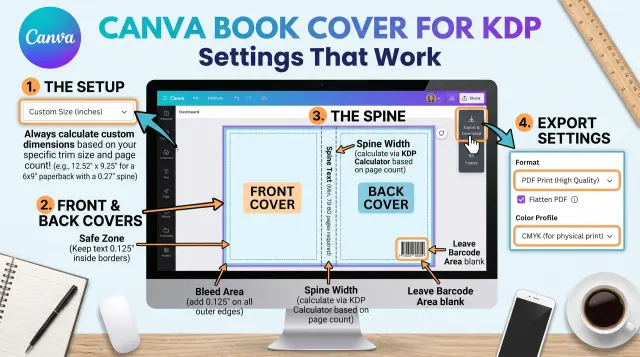
If you design in Canva, set a custom size from the calculator. Then export a PDF and check it against the checklist.
People Also Ask
Does KDP provide a cover template?
KDP provides a cover calculator that gives the exact dimensions for your book. Many authors build a template from those numbers. If you use a ready-made file, remove the template text and guides before you upload, because KDP checks for that.
What size is a KDP cover template?
It depends on your trim size, page count and paper type. For a 6×9 book with 300 pages on white paper, the cover is 12.9256 inches wide. It is 9.25 inches tall. Use the calculator for your own numbers. Page count and paper type both change the width.
Can I use one template for every book?
No. Each book needs its own numbers because spine width changes with page count and paper type. You can reuse a layout style, but you must rebuild the size and spine for each new book or edition. Even a small page change alters the spine.
Common mistakes
Key takeaway: Most rejections come from wrong size, text near the edge or leftover guides.
- Using a template built for another page count.
- Putting text on a spine under 79 pages.
- Leaving crop marks or template text in the file.
- Placing art inside the barcode area.
- Exporting a PDF with fonts not embedded.
Your next step: calculate your cover size
Open the KDP calculator and enter your trim size, page count and paper type. Write down the width, height and spine. Then build your template and save a master copy.
Once the template works, design the cover and run the checklist.