What is a table of contents?
Key takeaway: A table of contents is an ordered list of chapters and sections with their locations.
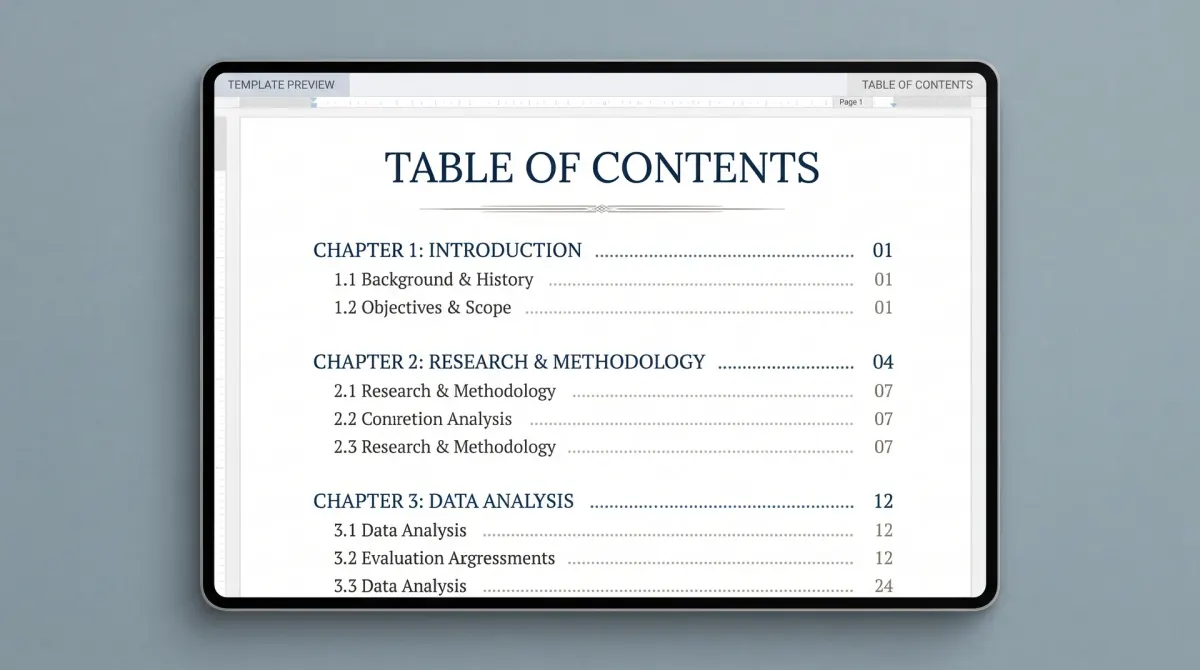
Table of contents template is a ready layout that lists a book's chapters in order. It shows page numbers or links. You build it from heading styles, so it updates itself when the text changes. Readers use it to find chapters fast.
A table of contents, often shortened to TOC, lists the parts of a book in order. Readers use it as a map. The table of contents definition is that simple.
In a print book, each entry shows a page number. In an ebook, each entry is a link that jumps to the chapter. Both forms do the same job.
Amazon KDP is Amazon's self-publishing service for ebooks and paperbacks. Its front matter guide places the table of contents after the dedication and before the preface. It also says the contents page is right-facing and may span more than one page. The page itself carries no page numbers or headers.
An ebook table of contents often uses links, not page numbers, because reflowable text has no fixed pages.
Table of contents template you can copy
Key takeaway: Copy this layout, replace the names and let your tool fill the page numbers.
Use this table of contents example as a starting point for a nonfiction book. Replace each entry with your own.
| Entry | Type | Page |
|---|---|---|
| Introduction | Front | 9 |
| Chapter 1: The Problem | Chapter | 15 |
| Chapter 2: The Plan | Chapter | 29 |
| Chapter 3: The Steps | Chapter | 43 |
| Conclusion | Chapter | 57 |
| About the Author | Back | 63 |
For a novel, the layout is shorter.
- Prologue (if you have one)
- Chapter 1 to Chapter 30
- Epilogue (if you have one)
- Acknowledgments
- About the Author
Keep these rules for every template.
- Use the exact chapter names that appear in the body.
- List only the levels you need, often chapters only.
- Keep the same style for every entry.
- Leave out the contents page itself.
KDP gives an example of the matching rule. If a chapter is named "The Large Dog" in the body, the contents entry must read "The Large Dog". It cannot read "The Big Dog".
How to make a table of contents in Word: steps
Key takeaway: Apply heading styles first. Then insert the table from the References tab.
Microsoft's help page describes an automatic table of contents built from heading styles. If you ask how to create a table of contents in Word, follow these steps.
- Select each chapter title.
- Apply the Heading 1 style.
- Click where the table goes.
- Open References, then Table of Contents.
- Choose an automatic style.
- Right-click the table to update it.
Heading 1 marks main chapters. Heading 2 and Heading 3 mark sections inside them. Choose only the levels you want shown.
After you edit, right-click the table and choose Update Field. This refreshes the entries and the page numbers.
If you build an ebook for KDP, the help page adds extra steps. It says to apply Heading 1 to chapter titles and insert the table from References. Then clear the option to show page numbers and set the levels to 1. It also asks you to add a bookmark named "toc" at the contents page.
Those extra steps help KDP create a linked contents for your ebook. Follow them when you upload a Word file.
Table of contents in Google Docs: steps
Key takeaway: Use heading styles, then insert the table from the Insert menu.
Google Docs builds the table from headings too. Here is how to make one.
- Select a chapter title.
- Open the Normal text menu and pick Heading 1.
- Repeat for every chapter.
- Click where the table goes.
- Open Insert, then Table of contents.
- Pick a format.
Google's own blog lists three formats. One is plain text with page numbers. One uses dotted lines to the page numbers. One uses blue links with no page numbers.
For a print book, pick the one with page numbers. For an ebook, pick the one with links.
After you add or move headings, right-click the table and select Update table of contents. You can also use the update icon beside the table.
If you plan to upload to KDP, export your Google Doc as a Word file first. Then check the contents and the headings in Word.
Plan the page numbers with a worked example
Key takeaway: You can predict chapter start pages with simple division.
Page numbers change when you edit. But you can plan them early with a little math. Here is a worked example.
Say your book has 3 chapters of 3,000 words each, and the front matter takes 8 pages. Assume 300 words per printed page.
- Pages per chapter: 3,000 ÷ 300 = 10 pages.
- Chapter 1 starts on page 9, after 8 front pages.
- Chapter 1 runs pages 9 to 18.
- Chapter 2 starts on page 19 and runs 19 to 28.
- Chapter 3 starts on page 29 and runs 29 to 38.
Check the last page. 8 front pages + 3 × 10 chapter pages = 38 pages. That matches the end of chapter 3.
The 300 words per page figure is a rule of thumb. Your trim size and font will change it. Treat the plan as a guide, and let your word processor produce the final numbers.
Also note that KDP wants chapter one to start on a right-facing page. In print, right-facing pages have odd numbers. Chapter one at page 9 is odd, so it works. A chapter that would land on an even page needs a blank page before it.
Ebook vs print: what changes
Key takeaway: Print lists page numbers. Ebooks use links.
The two formats need different tables.
| Feature | Print book | Ebook |
|---|---|---|
| Page numbers | Shown | Not used |
| Navigation | Reader turns pages | Reader taps links |
| Styles | Heading styles | Heading styles |
In an ebook, readers also use the device's own navigation menu. A good linked contents feeds that menu. That is why heading styles matter in both cases.
KDP also notes that Kindle Create can add a Kindle Interactive table of contents. This is an option if you build your ebook in Kindle Create rather than Word.
Whichever route you take, test the result. Open the file on a phone. Tap each entry and confirm it jumps to the right chapter.
Style tips for a clean contents page
Key takeaway: A plain, consistent contents page is easy to scan and easy to fix.
Accuracy matters most. A few habits make the page easier to read.
- Use one font size for all chapter entries.
- Indent section entries under their chapter.
- Keep each entry to one line when you can.
- Use the same capital style for every title.
- Keep the page free of images and decoration.
Check the match between the contents and the body one last time. Open the file and click or scan each entry. Make sure every chapter title reads the same in both places.
If your book has a prologue, list it as its own entry. Do the same for an epilogue, acknowledgments and the author bio. Readers use the contents to jump to these parts.
Finally, plan for updates. When you add a chapter, update the table at once. A stale contents page is one of the easiest errors to prevent.
People Also Ask
How do I make a table of contents in Word?
Apply Heading 1 to each chapter title. Click where the table should go, open References, then Table of Contents, and pick an automatic style. After you edit the text, right-click the table and choose Update Field. The table refreshes with new titles and page numbers.
Should the contents page have a page number?
No. KDP says the table of contents has no page numbers or headers on the contents page itself. The entries inside the table show the page numbers of chapters in a print book. For an ebook, the entries are links instead.
Can I make a table of contents in Google Docs?
Yes. Apply heading styles to your titles. Click where the table goes, open Insert, then Table of contents, and pick a format. After you change headings, right-click the table and select Update table of contents. Export to Word before a KDP upload.
Common mistakes
Key takeaway: Most errors come from manual typing and mismatched names.
- Typing the table by hand.
- Using names that differ from the chapter headings.
- Forgetting to update after edits.
- Adding page numbers to an ebook list.
- Applying bold text instead of heading styles.
Your next step: set up heading styles today
Open your manuscript. Apply Heading 1 to every chapter title. Then insert the table and update it.
When the table works, move on to the rest of your interior file and run a final check.