Two jobs: writing and formatting
Key takeaway: Writing the book and formatting the book are different jobs. Some tools do both, but many do only one.
Book writing software is a program that helps you draft, organise and edit a long manuscript. The best book writing software is the one that fits your book type, exports clean files, backs up your work and does not get in the way of your writing.
Writing software helps you get words on the page. It may offer outlines, chapter navigation, goals and notes.
Formatting software prepares the finished manuscript for print and ebook. It controls margins, fonts, chapter starts and file export.
Decide which job you need help with first. Many authors write in a word processor and use a formatting tool at the end.
Types of writing tools
Key takeaway: Pick the type, then pick the product. The type matters more than the brand.
| Type | Best for | Watch out for |
|---|---|---|
| Word processor | Simple books, easy sharing with editors | Long files can get slow |
| Writing app with chapters | Long manuscripts, outlines, notes | Learning curve, export steps |
| Plain text or Markdown editor | Focus, speed, light files | Needs conversion before publishing |
| Voice dictation | Fast first drafts | Needs clean-up |
| Planning or outline tool | Plots, characters, research | Does not replace a manuscript file |
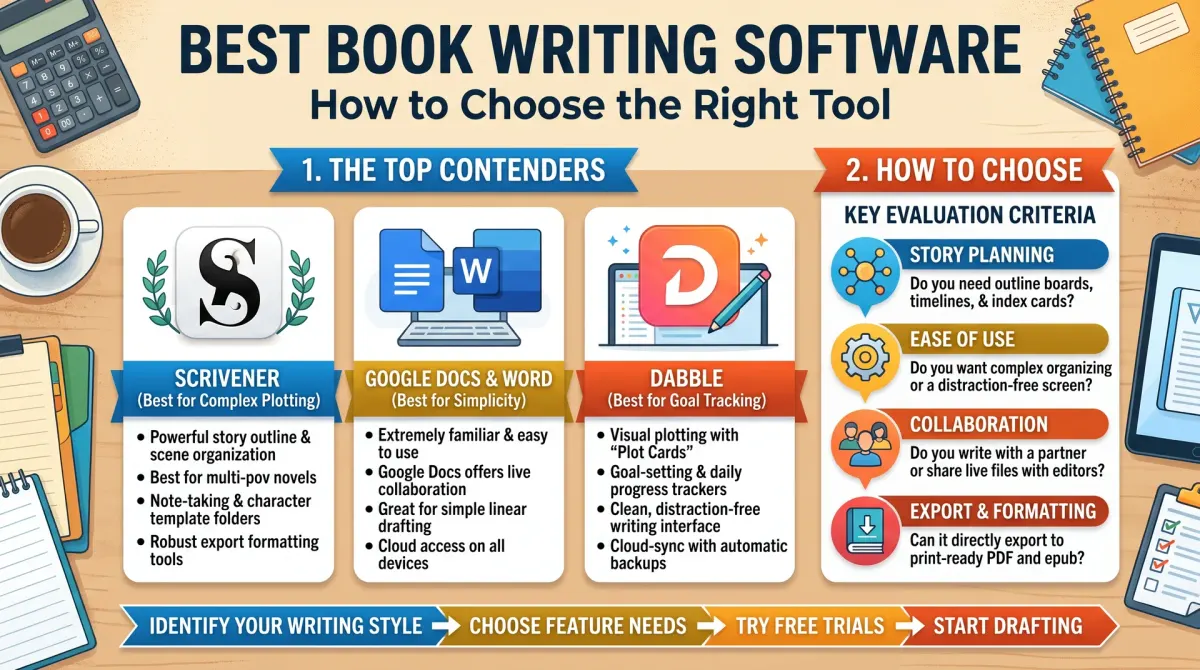
Examples of well-known products in each group are word processors such as Microsoft Word and Google Docs, and writing apps such as Scrivener. Check each product's own website for current features and prices.
What to look for
Key takeaway: Judge a tool by how well it handles your workflow, not by its feature list.
- Easy start. You should be able to type within a minute.
- Chapter view. Moving chapters around should be simple.
- Word count and goals. Tracking progress keeps you moving.
- Export. It should export a file your editor or formatter can open, such as a document file.
- Backups. Look for auto-save, version history or cloud sync.
- Device support. Make sure it works on your computer and phone if you want to write on the go.
- Cost. One-off price, subscription or free. Check the vendor's own page.
A simple way to test tools
Key takeaway: Write one real chapter in each tool before you commit.
Pick two or three tools. Use each for a week with a real chapter, not a test paragraph. At the end, answer these questions.
- Did I write more or less than usual?
- Was exporting easy?
- Did the tool get in my way?
- Can I back it up simply?
Choose the one with the best answers. Do not move your entire manuscript until you are sure.
How your choice affects publishing
Key takeaway: Make sure your writing tool can export a clean file. A messy export creates formatting work later.
KDP accepts several file types for ebooks, and a print-ready PDF for paperbacks. Your formatting tool or Kindle Create can turn a clean manuscript into those files. Use real heading styles for chapter titles instead of making text big and bold by hand, so tools can build a table of contents.
Back up your book
Key takeaway: Keep at least two copies in two places. Lost files are the most painful writing problem.
- Use cloud sync or version history.
- Save a dated copy at the end of each week.
- Email yourself a copy of each finished chapter.
- Keep one copy on an external drive.
Match the tool to your kind of book
Key takeaway: A novel, a how-to book and a workbook need different things from a tool.
Novels. Writers of long fiction value chapter navigation, a place for character notes, a way to move scenes around, and a word count per scene. A writing app with a binder view is popular for this reason, but a word processor with headings can do the job.
Non-fiction and how-to books. These benefit from outlines, research notes and a place to store links and quotes. Headings should be consistent, because they become the table of contents in the ebook. A word processor with styles works well.
Workbooks and journals. These are layout-heavy. The writing tool matters less than the formatting tool. You may need page-level control, so a design tool or a specialist template may fit better.
Short guides and lead magnets. A word processor and an export to PDF are usually enough.
Before you pay for a tool, ask whether your book actually needs the feature you are buying it for.
Habits that matter more than the tool
Key takeaway: The tool is the smallest part of finishing a book. Habits decide the result.
The best software cannot write for you. What finishes books is a routine: a fixed time, a quiet place and a goal for the day. Pick the tool that removes friction from this routine. If opening the app takes more than a minute, you will skip days.
Keep your files tidy. Name chapters in order, such as "01-introduction" and "02-first-steps". Keep one master file or folder, and do not scatter copies across devices. Decide where the latest version lives, and always save there.
When you work with an editor, agree on the file type early. A document file with tracked changes is the most common choice. Ask your editor what they prefer before you start.
Signs it is time to switch tools
Key takeaway: Switch only when the current tool causes a real, repeated problem.
- Your file is so large that it freezes.
- You cannot find your notes.
- Exporting always breaks the formatting.
- You do not trust your backups.
- You keep avoiding the app.
If none of these is true, stay where you are. Changing tools in the middle of a draft costs more time than most features save.
Start with your book type
The right tool depends on the book. A novel with many characters and scenes may benefit from a planner that tracks them. A non-fiction guide may need an outliner and a place for sources. A memoir may need a timeline. A workbook may need tables and layout control from the start.
Write down the three things your book needs most. Then test whether each tool handles them. A tool that shines for one book type may frustrate you on another.
If your book will have many images or tables, learn how each tool handles them before you write 50,000 words.
Exports and compatibility
Your manuscript must leave the tool in a clean form. Check what formats the tool can export. A common word processor format is useful for editors and formatters. A plain text or Markdown export is useful as a safe archive.
Test an export early. Take a short sample with headings, italics, lists and a footnote. Export it, open it elsewhere and look for damage.
Avoid tools that lock your work in a format only they can open. If the company closes, you could lose access to your book.
Backups and version history
Software can fail, accounts can be locked and files can be deleted. Plan for it. Keep your manuscript in at least two places, such as your computer and a cloud service, and keep one export on a separate drive.
Use version names with dates. Save a copy before big edits, such as a restructure or an AI-assisted rewrite. If you need to go back, you can.
Check whether the tool has a version history. It is a helpful safety net, but it does not replace your own backup.
Comfort and distraction
The best tool is the one you open every day. Try a few for a week each. Notice how fast they open, how easy it is to find a scene and whether the screen feels calm.
Turn off features you do not use. A tidy workspace helps you write. If you like to work on a phone or tablet, check that the tool syncs well.
Do not change tools in the middle of a draft unless you must. Switching costs time and can break formatting.
Price and long-term value
Compare costs over a year. Include renewals, add-ons and any plan changes. A cheap tool that you outgrow can cost more than a good one you keep.
Read the vendor's terms on data and ownership. Your text belongs to you, but the tool should say so clearly.
If you are not sure, start with a free option for your first draft. Move to a paid tool when you know what you need.
Use templates and styles to save time
Most tools let you set styles for headings, quotes and body text. Set them once and use them throughout. This keeps the book consistent and makes formatting easier later.
Avoid manual formatting such as extra spaces, tabs and hand-made headings. These break when you export. Use real heading styles instead, so that the table of contents builds itself.
If your tool supports templates, save one for your book type. A template for chapter notes, character sheets or a source log saves time on the next project.
Writing on more than one device
Many authors write on a laptop at home and a phone on the move. Check that your tool syncs reliably and handles offline work. Test it by writing on one device and opening on another.
Be careful with conflicts. If two devices edit the same file, one version may overwrite another. Close the app on one device before you open it on another, and check the version history.
Keep your backup habit across devices. A synced file is not a backup. If you delete a chapter by mistake, the deletion may sync everywhere.
People also ask about book writing software
What software do most authors use to write a book?
Many authors use a word processor because it is familiar and exports to most formats. Others prefer writing apps built for long projects, with chapter views and notes. There is no single standard. Choose the tool that lets you write daily without distraction and export clean files.
Is there free book writing software?
Yes. Free word processors and Markdown editors can handle a full manuscript. Some paid tools offer free trials or limited free plans. Check each vendor's current terms. Free tools work well if you keep backups and test your export before you publish.
Do I need special software to format a book for KDP?
No. You can write in any tool and export to a format that KDP accepts. Formatting software helps with layout and ebooks, but a careful word processor file can work for simple books. Always check the result in the KDP previewer.
Make your choice
Pick two or three tools that fit your book type. Write a test chapter in each. Export it, check it and choose. Then write the book. The words matter more than the tool.