What is an ebook template?
Key takeaway: A template is a reusable layout. The tool you pick decides which file you can export.
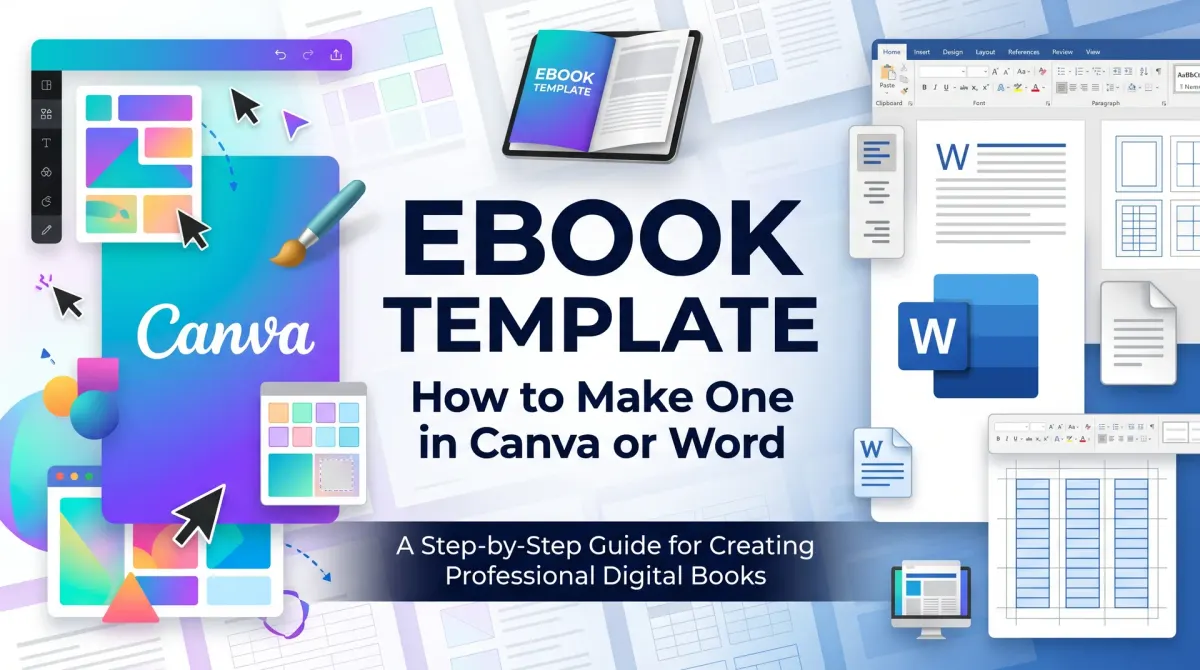
An ebook template is a reusable layout with preset fonts, margins, headings and page types for a digital book. You fill in your text and images, then export a file. The right tool depends on your goal: a designed PDF or a reflowable ebook.
Two kinds of files matter here.
A reflowable ebook adjusts its text to the reader's screen. Novels and most guides use this format. A fixed-layout file keeps each page the same. Designed guides, workbooks and checklists often use it.
Canva is a design tool. It handles fixed pages well. Word is a writing tool. It handles flowing text well.
Many authors use both. They design a cover in Canva and write the book in Word.
If you plan to sell on KDP, start with the upload rules. If you plan to give a guide away, start with design.
Canva ebook template: when it works
Key takeaway: Use Canva for designed PDFs, covers and lead magnets. Do not expect an EPUB from it.
A Canva ebook template is a design you build or adapt in Canva. It gives you visual control. You drag in images, change colors and set page sizes.
Canva's download help page lists the file types it exports. They include PDF, JPG, PNG, SVG, MP4, GIF and PPTX. Canva Docs exports DOCX and Sheets exports XLSX. EPUB is not on the list.
That has a clear consequence. A design made in Canva suits these uses:
- A free PDF guide on your website.
- A workbook readers can print.
- A cover image for your ebook.
- A checklist or a lead magnet.
It does not suit a reflowable book on KDP. For that, use a Word file or a book tool.
If you search for a Canva ebook, you will find many designs. Check each licence and its terms before you sell a book that uses it. Some layouts are for personal use only.
Set your page size first. Common sizes for a PDF guide are US Letter and A4. Pick one and keep it for every page.
Word ebook template: when it works
Key takeaway: Use Word for reflowable books you plan to upload to KDP.
A Word ebook template uses styles instead of manual formatting. Styles keep the layout consistent. They also build the table of contents for you.
KDP's help page explains how. Apply the Heading 1 style to each chapter title. Then go to References and insert a table of contents. Clear the "Show Page Numbers" option and set the levels to 1. KDP also asks you to add a bookmark named "toc" at the contents page.
Kindle Create is Amazon's free tool for building Kindle books. KDP says it can add a Kindle Interactive table of contents.
KDP accepts EPUB, DOC/DOCX and KPF for reflowable ebooks. So a DOCX file built from a clean template is a valid upload.
Keep your Word file simple.
- One body font and one heading font.
- Heading 1 for chapters, Heading 2 for sections.
- No tabs or spaces for indents. Use paragraph styles.
- A page break before each chapter.
- No headers or footers for ebooks.
Simple files convert more cleanly. Complex layouts break on small screens. Keep images small and place each one on its own line. Test the file by opening it in a free reading app before you upload.
Free ebook template: page-by-page blueprint
Key takeaway: A good template has the same page order every time. Copy this layout and reuse it.
You can build a free ebook template with the tools you already have. Use the page order below.
| Page | Content | Notes |
|---|---|---|
| 1 | Cover | Image only |
| 2 | Title page | Title and author |
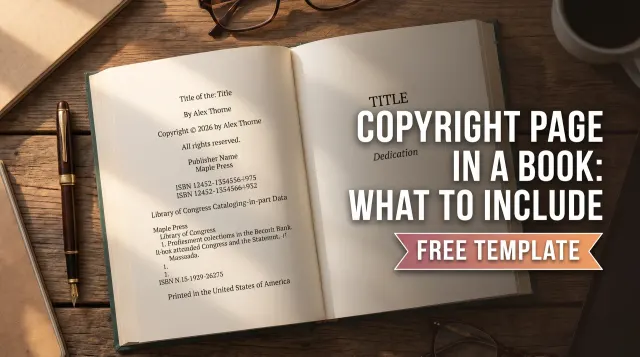
| 3 | Copyright page | No page numbers |
| 4 | Contents | Linked headings |
| 5 | Introduction | Short, about 200 words |
| 6 to 19 | Chapters | Repeat the layout |
| 20 | Call to action | Link to your site |
This blueprint fits a 20-page lead magnet. Here is the budget with shown math.
- Content pages: 20 − 5 front and back pages = 15 pages.
- Words per page: 200 (a designed page with white space).
- Total words: 15 × 200 = 3,000 words.
That is a short guide a reader can finish in one sitting. A longer book needs more pages.
Each chapter page should follow one pattern. Use the same heading size, the same body font and the same spacing. That is what makes the template reusable.
Save the file as "Template" and duplicate it for each new book. Never edit the master.
How to build an ebook template: steps
Key takeaway: Pick the goal, set the page size, then build one page at a time.
Follow these steps in Canva or Word.
- Decide: free PDF or KDP ebook.
- Pick Canva or Word.
- Set the page size and margins.
- Choose one body font.
- Build cover, contents and chapter pages.
- Save the file as a master copy.
- Export PDF, DOCX or EPUB.
Step seven depends on your goal. A free guide exports as PDF. A KDP book uploads as DOCX, EPUB or KPF.
Before you export, test the file. Open it on a phone and a laptop. Check that headings, images and links look right.
For the cover, use a separate design. A cover is an image, not part of the text flow.
Fonts, colors and spacing that work
Key takeaway: Fewer fonts and colors make a template look clean and keep the file light.
Design choices affect readability more than most authors expect. A few rules keep the file easy to read.
Fonts. Use one body font and one heading font. Pick fonts that stay clear on a phone. Avoid thin script fonts for body text.
Size. Use 11 to 12 points for body text in a designed PDF. Make headings clearly larger. Keep the size steps consistent across chapters.
Colors. Pick one main color and one accent. Use dark text on a light background for the best contrast. Test the file in grayscale if readers may print it.
Spacing. Add space between paragraphs. Short paragraphs read well on small screens. Leave room around images and quotes.
Images. Use images that are sharp but not huge. Very large files load slowly and are harder to share. Compress them before you add them to the file.
Consistency is what turns a layout into a real template. When every chapter looks the same, the book feels professional.
Check your file before you export
Key takeaway: A short checklist catches most problems before readers see them.
Run this list on every file.
- Spell-check the whole document.
- Check that every heading uses the right style or size.
- Click each link in the table of contents.
- Look for stray spaces and empty pages.
- Confirm the copyright page and your name are correct.
- Preview on a phone and a laptop.
Then save the final file under a clear name. Add the version date to the file name. This helps you find the latest copy later.
If you plan to upload to KDP, read the current format page once more. Rules can change, and the help page is the source of truth.
People Also Ask
Is there a free ebook template?
Yes. You can build your own in Canva or Word at no cost, using the blueprint above. Many sites also offer starter layouts. Check each licence before you sell a book that uses a ready-made design, because some templates restrict commercial use.
Can I make an ebook in Canva and upload it to KDP?
Not as an EPUB. Canva's help page does not list EPUB among its export types. You can design the cover in Canva and export it as an image or PDF. For the text, use Word or a book tool, then upload DOCX, EPUB or KPF.
What size should the page layout be?
For a PDF guide, US Letter or A4 are common. For a reflowable ebook, page size does not matter because the text adapts to the screen. Choose one size for a designed PDF and keep it the same on every page.
Common mistakes
Key takeaway: Most template problems come from picking the wrong tool for the goal.
- Designing a KDP book in Canva and expecting an EPUB.
- Using manual spaces and tabs in Word.
- Skipping the linked table of contents.
- Mixing page sizes in one PDF.
- Using a template without checking its licence.
Your next step: build one master file
Pick your goal today. Build a master file with the blueprint above. Test it on a phone and save it as your template.
When the template is ready, move on to the cover and the upload.