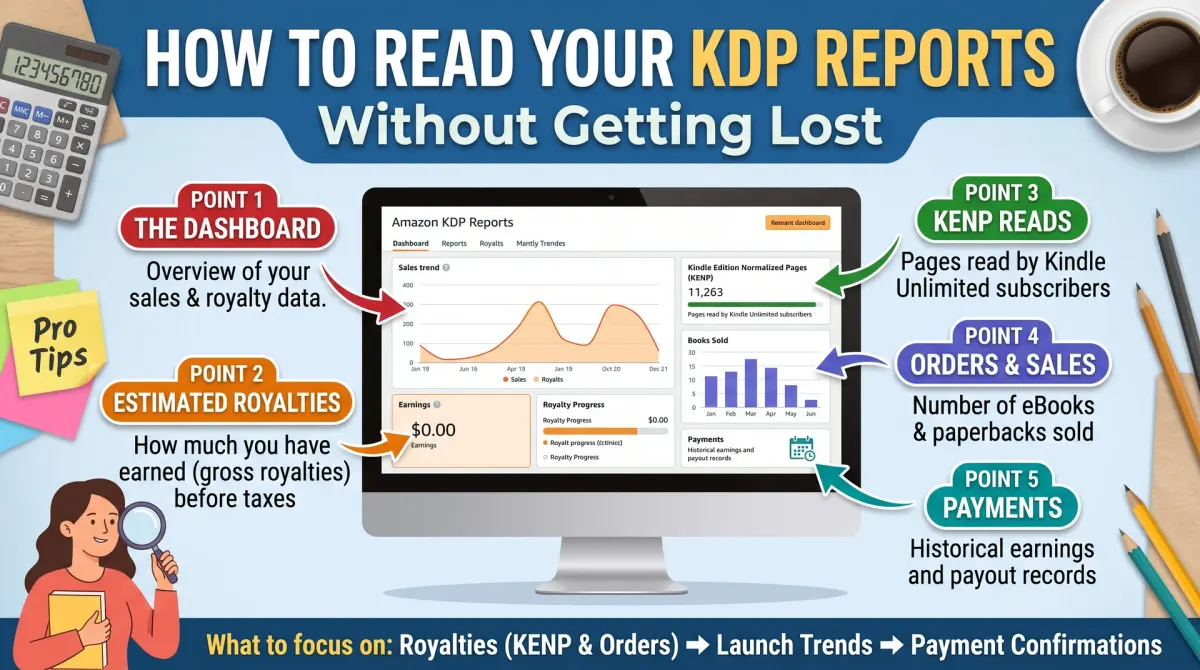
Where to find your reports
Key takeaway: The Reports section of your KDP account is the home of all sales and royalty data.
KDP reports are the dashboards in your KDP account that show sales, page reads, royalties and payments for your books. Reading them well means knowing what each number counts, when it updates and how to compare months fairly.
Sign in to your KDP account and open the Reports area. You will see a summary of your recent sales, royalties and page reads. From there you can switch to views such as sales, orders and payments, and you can filter by date, title and marketplace.
The names and layout of the pages can change, so use the labels as a guide rather than a fixed map. The KDP help pages describe the current version.
The numbers you will see
Key takeaway: Learn six terms and the reports become simple.
| Term | What it means |
|---|---|
| Units ordered | Number of paid copies ordered |
| Units refunded | Copies returned or refunded |
| Net units | Units ordered minus refunds |
| KENP read | Pages read by Kindle Unlimited readers |
| Royalty | Estimated earnings in the marketplace currency |
| Free units | Free copies, for example during a promotion |
Each number is shown by title, format and store. Print and ebook are listed separately.
Why numbers change
Key takeaway: The first figures you see are estimates. Final numbers come with payment.
Three things cause changes.
- Returns. Customers can return ebooks and print orders within a period, and the sale is removed.
- Currency conversion. Sales in other currencies are converted, so the amount can differ slightly from your first view.
- Delays. Some data arrives later, especially print orders from other sellers.
Use the reports to see trends. Use the payment statement for exact amounts.
Page reads in Kindle Unlimited
Key takeaway: KENP shows pages read. Your page-read income depends on a monthly rate that KDP announces later.
If your ebook is in KDP Select, readers in Kindle Unlimited borrow it. KDP counts the pages they read as normalized pages. At the end of the month, KDP divides a global fund by the total pages read and pays you for your share.
You can see KENP in your reports before the rate is known. Do not multiply it by an old rate and treat the result as final. Wait for the royalty line.
Build a simple tracking sheet
Key takeaway: Copy numbers into a sheet each month. You will see patterns the dashboard does not show.
Make a table with these columns.
| Month | Title | Format | Units | KENP | Royalty | Notes |
|---|
Add one row per title and format each month. Use the notes column for things you did, such as a price change, an email to your list or a promotion. After a few months, you can see which actions moved the numbers.
Total the royalty column each year for tax records. Ask a tax adviser what you need to keep.
Check your payments
Key takeaway: Compare each payment with your reports, and ask KDP support if a number looks wrong.
KDP pays about 60 days after the end of the month in which sales happened, once you reach the payment threshold. Check your payment history in your account, and match each deposit to the month it covers.
If something does not match, wait until the month is final, then contact KDP support with the title, month and amount.
Common reading mistakes
Key takeaway: Compare like with like. Different periods and currencies cause most confusion.
- Comparing a 30-day period with a 31-day one.
- Mixing currencies without converting.
- Looking at one day and calling it a trend.
- Ignoring refunds.
- Counting free units as sales.
Look at at least four weeks of data before you decide to change a price or a cover.
A monthly review routine
Key takeaway: Spend twenty minutes once a month. A short, regular review beats checking the dashboard every day.
Checking sales every hour feels productive but teaches you little. Daily figures jump around, and a single sale can look like a trend. Pick a fixed day each month, for example the first Sunday, and do a short review.
Start by copying last month's numbers into your tracking sheet. Then ask four questions. Which title sold the most? Which format sold the most? Did anything I did last month change the numbers, such as a price change or a promotion? What will I try next month?
Write your answers in the notes column. After a few months, you will have a record of what worked. That is far more useful than a feeling.
Also check the other side of the business. Look at your costs, such as ads and tools, and compare them with your royalties. If an activity costs more than it earns, change it or stop it.
Using reports to make decisions
Key takeaway: Reports tell you what happened. They do not tell you why. Test one change at a time.
Suppose sales drop in a month. The cause might be a price change, a seasonal pattern, a new competitor or a cover that no longer fits the genre. If you change three things at once, you will not know which one helped.
Change one thing, wait at least four weeks, and compare. Good tests include a new cover, a new description or a new price. Keep a log of the date and the change.
Reports can also show you where readers are. If most of your sales are in one country, you could adjust your price or your marketing for that market. If page reads are strong but sales are weak, readers may like the book but not buy it, which could point to your price.
Know what each report shows
KDP gives several views. A sales report shows units ordered and royalties earned. A page reads view shows pages read in Kindle Unlimited for enrolled books. A payments view shows what has been paid. A promotion view shows free days or deals.
Read each report's notes. They explain what counts and what does not. For example, a unit may mean a sale of one format, and a return can reduce the count.
Start by looking at one title and one marketplace. Add more once you understand the basics.
Compare the right periods
Single days are noisy. A weekend can look slow, and a launch day can look huge. Compare weeks and months.
When you test a change, such as a new cover or price, give it enough time. Compare the weeks before and after, and note anything else that changed.
Keep the same date range when you compare titles. Otherwise a new book can look worse than an old one.
Build a tracking sheet
The dashboard is not a long-term record. Download or copy your numbers into your own sheet each month.
Use columns for month, title, format, marketplace, units, royalties, page reads, price and notes. Add a notes column for actions you took, such as a promotion or a new review.
A sheet lets you see trends across years and across books.
Watch currencies and marketplaces
KDP sells in many marketplaces and currencies. Reports may show amounts in the local currency. Payments convert at the rate in force at the time.
Look at which marketplaces bring most sales. If one country leads, consider adjusting your price, keywords and promotion for it.
Keep a note of exchange effects so a drop in one month is not mistaken for a drop in sales.
Check your payments
Every month, compare the payment amounts with your royalty reports. Differences can come from timing, taxes, returns or exchange rates.
Keep your tax and bank details current. A missing detail can delay payment.
If you see a payment that does not match your records, check the notes, then contact KDP support with the details.
Use reports to decide
Reports tell you what happened, not why. Use them with other facts, such as your marketing log and your reviews.
Ask simple questions. Did sales change after a price test? Did page reads rise after a launch? Which format sells best?
Choose one change at a time and measure it.
Page reads in Kindle Unlimited
If you enrol an ebook in KDP Select, you can see pages read in Kindle Unlimited. These pages earn income from a shared fund, and the rate varies each month.
Watch trends, not single days. A rise in page reads after a promotion shows that readers started the book. A drop may show a weak start or a mismatch in the description.
Compare with sales so you see the full picture.
A checklist for your monthly review
Download the reports. Update your sheet. Compare with last month. Note any actions you took. Check payments. Write three observations and one action for next month.
Keep the review short, so you will repeat it.
Keep your numbers safe and private
Your reports show income, so protect them. Use a strong password and two-step sign-in on your KDP account. Do not share screenshots that show account details. Store downloaded files in a private folder and back them up.
If you work with a helper, give them only the access they need. Remove access when the work ends.
This care also helps your taxes. Keep your reports and payment records for the period your country requires, and ask a tax adviser if you are unsure about what to keep and for how long.
People also ask about KDP reports
Where do I find my KDP sales reports?
Sign in to your KDP account and open the Reports section. You can view sales, royalties and page reads by date, title and marketplace. Reports may update with a delay, so check the notes on the page. Download the data to keep your own records.
Why do my KDP sales numbers change?
Orders can be returned, refunded or adjusted, and reports may be updated after the first count. Currency changes and delayed data also affect totals. Compare full months rather than single days, and keep your own records for trends.
When does KDP pay royalties?
KDP pays royalties about two months after the end of the month in which the sales were made, if you meet the payment threshold and have valid tax and bank details. Check the KDP help pages for the current rules and your marketplace.
A monthly review habit
Set a date each month. Download the numbers, update the sheet, write three notes and pick one action. A short routine beats an occasional long one.